Add or remove group team members.
Found on your Group Team tab, your group team will include the “admins” of your employer portal. You may add HR officials, privacy officers, legal or finance team members, company presidents, or anyone who may need employer portal permission.
*Please Note: If you are both a group admin and a member on the health plan, you can toggle between your admin and member view by clicking the dropdown arrow on the top left of the portal, where your group name is.
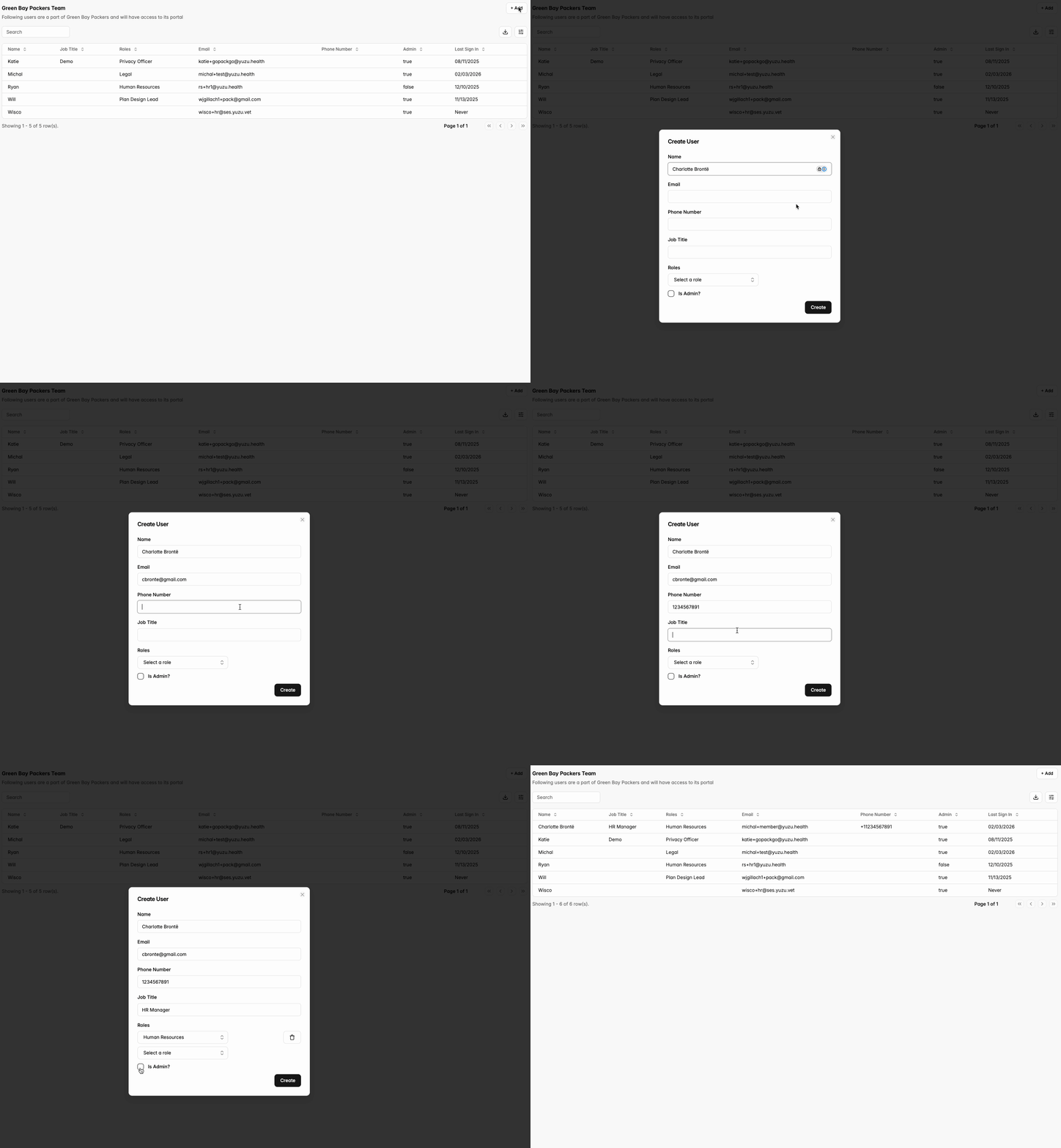
Adding a Group Team Member
- Click “Add” in the top right.
- Create User.
- Add email, phone number, and role.
- Press “Is Admin” if they should have permission to edit the group portal (Admins can Manage team members, Manage banking and business details, and Sign contracts)
- Press “Create”!
Removing a Group Team Member
To remove a team member who has been incorrectly added, press on that member and click “Remove.”
A Note on Roles and Privileges
The type of role selected for an admin determines their portal permissions and visibility. To learn more about role permissions, see this guide.