Diagnosing and fixing ingestion failures from HRIS files.
Once connected via SFTP, all core demographics (Name, SSN, DOB, Sex) must be updated in the HRIS. Updating only in the portal causes enrollment errors on the next file and prevents ingestion (potentially preventing member care).
For full details related to integrations and setting up an HRIS connection for your group, please go to our dedicated integration resources HERE.
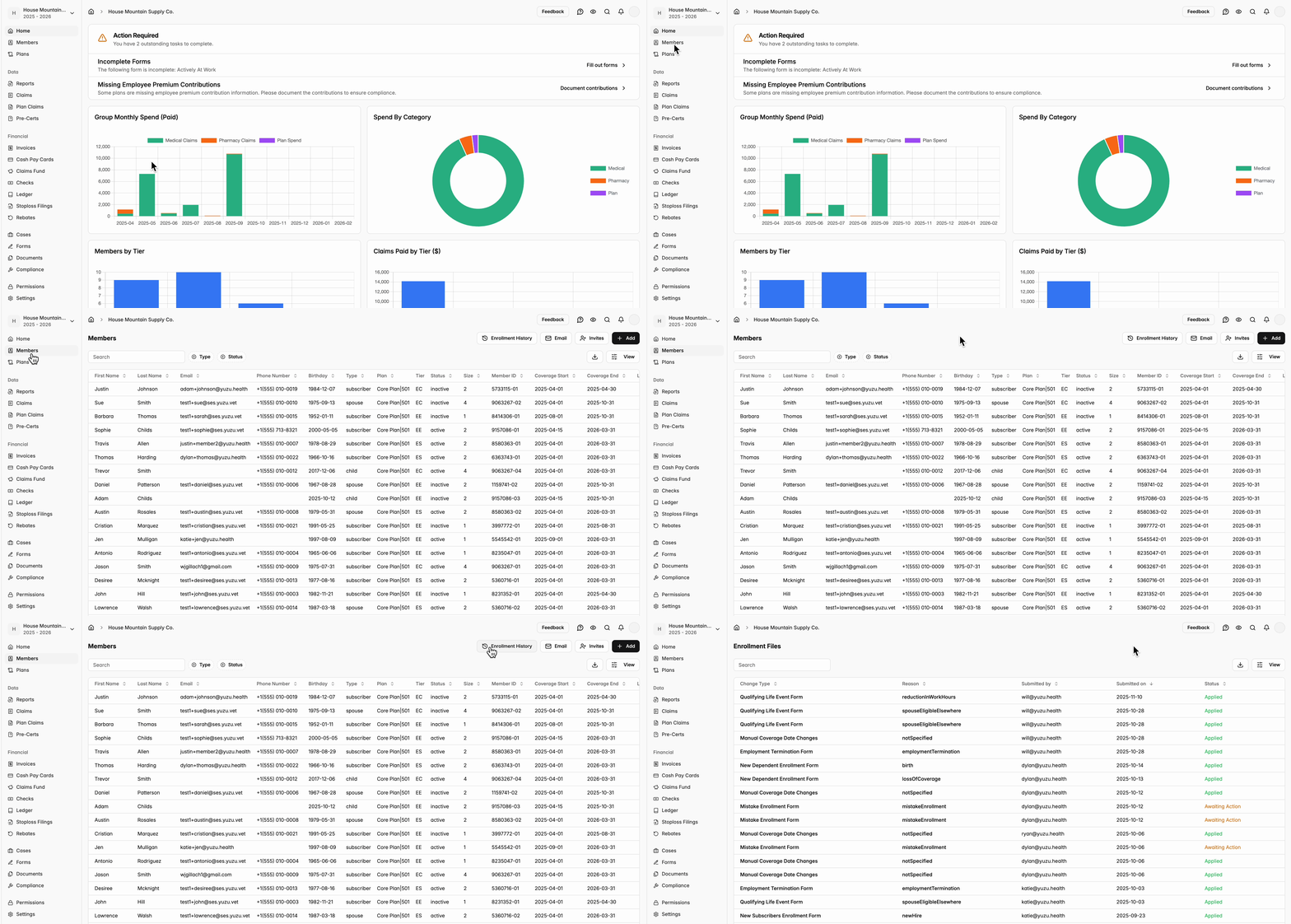
Step 1. Go to the enrollment history
- On the groups ‘Members’ tab, click the ‘Enrollment History’ button in the top right corner
- Here you can see the date of all enrollment changes, including inbound HRIS files
- From this view, you are able to see HRIS files with ingestion failures labeled as ‘Partially Ingested’ in the status column
Step 2. Diagnose ingestion failure (error types)
-
Demographic changes: We highlight ingestion failures primarily through the monitoring of discrepancies what we currently have in the portal and from the submitted file in five fields:
- First Name
- Last Name
- Sex
- SSN
- Birthday
- We additionally track errors related to:
- Absences of demographic information
- Date / plan period issues
- Member uniqueness (Duplicate phone number, email, SSN)
- Missing relationship types (Dependent is missing a Subscriber)
- Multiple coverages for same member with overlapping time periods
- We flag changes from one enrollment to maintain a high degree of data integrity
- Then, it becomes the users job to fix the failure.
Step 3: Fixing ingestion failures
- If the most recent HRIS file is partially ingested, that means an error occurred that may be able to fixed by you.
Type 1: Errors that can be fixed in the portal or resubmitting the file
- These are errors where Level Health is not sure what piece of information is correct. The process to solve each error is straight forward:
- If the PORTAL is correct, then please update your HRIS and resubmit the file
- If the SUBMITTED FILE is correct, then please update the portal, the recompute and reapply the changes (button in the top right corner)
- Errors in this category include
- Demographic Changes (Name, Sex, DoB, SSN)
- Member uniqueness (Duplicate phone number, email, SSN with another member)
Type 2: Errors that can only be fixed by resubmitting the file
- These errors are preventing ingestion into the Level Health portal and can only be updated in the HRIS and the file to be resubmitted.
- Errors in this category include
- Absences of demographic information
- Date / plan period issues
- Missing relationship types (Dependent is missing a Subscriber)
- Multiple coverages for same member with overlapping time periods
Note: Reason column
- The reason column describes a description of the action taken
- “Applied” means the action has been applied whether or not there was a change to the member’s info
- “Unknown” means there is not an active coverage for this member. Likely the coverage end date is prior to file submittal
- “Annulled” means the member has either been explicitly termed or termed by omission (strongly advised against using term by omission logic)
Step 4: Apply changes
- In the top right corner, click the carrot icon, the “Recompute.” Give that around 20 seconds, then press reapply. If the change is not successfully applied, reach out to partners@yuzu.health
Reminder: Turn on notifications of ingestion failures
In the top left corner, click the Icon with your group’s name > click the account settings for your log-in > Notifications > Toggle On ‘Ingestion Failures’, and choose that you want to receive an email for that notification.
Currently, email is the best way to ensure you will be notified if an event occurs as we do not have push notification functionality. More details on notifications HERE