New subscribers, qualifying life events, adding dependents without an HRIS Integration.
Adding new subscribers and their dependents
- To add a new subscriber to the Plan, click on the black “+Add” button in the top right corner of the “Members” Page.
- Select whether they are a new employee or an existing employee who has experienced a Qualified Life Event.
Note: Please only utilize this tool if there is no HRIS connection. If there is an HRIS connection these changes must be made in the HRIS system.
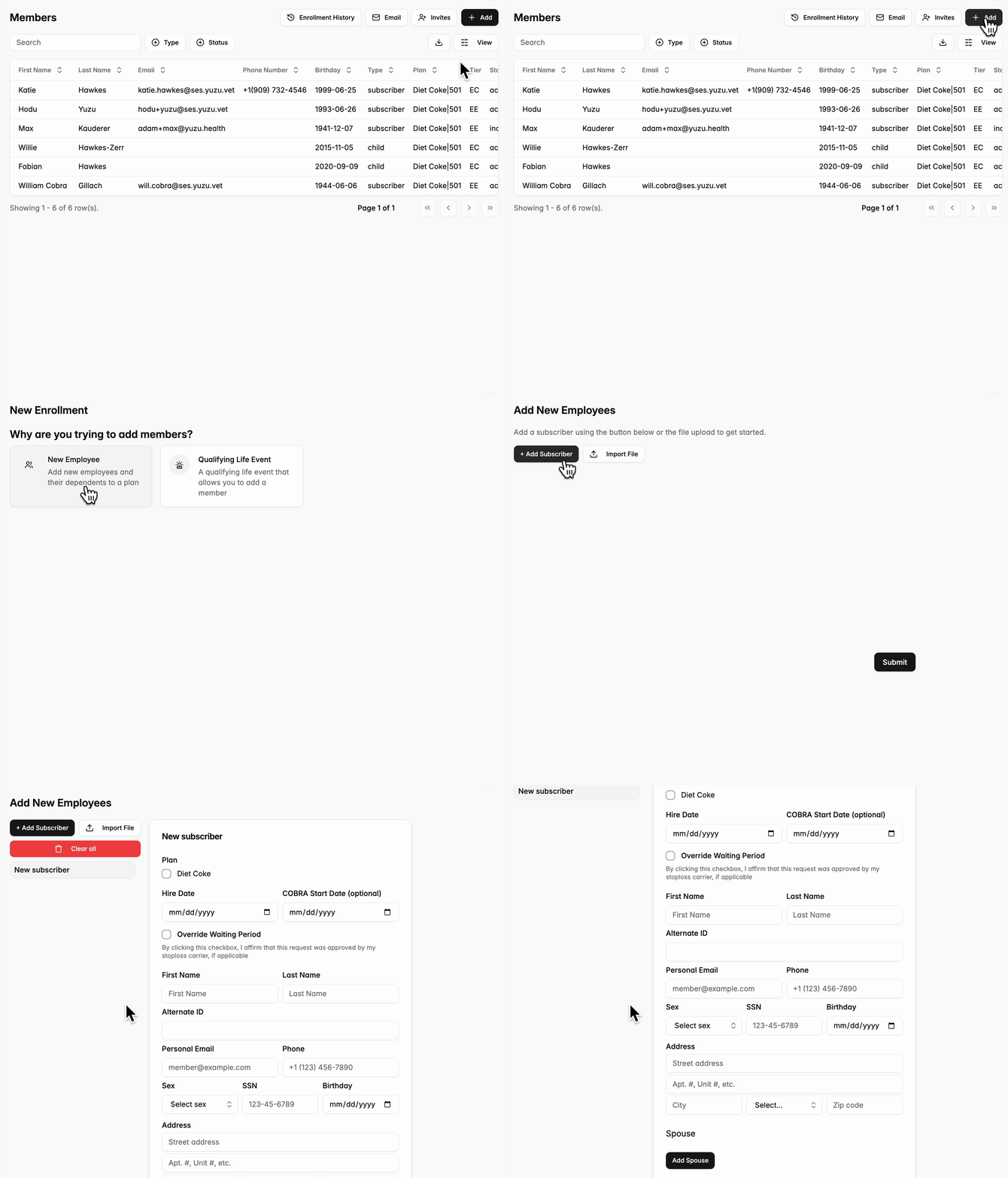
Adding net new employees to the plan
Create ‘New Employee’
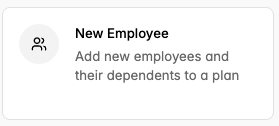
- Use Case: Best for uploads of individual newly hired employees and their families
- Pros: Gives employers the option to override the waiting period if needed (with the warning that this override must be approved by stop loss)
- Cons: Requires manual data entry to enter new employees and their dependent(s)
Import a file through ‘Bulk Add Employees’
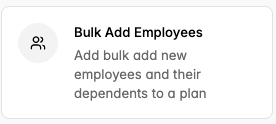
- Use Case: Best for uploading multiple employees at once during Initial Plan Enrollment
- Pros: Much faster, and tools like ‘AI Suggestion’ speed up mapping columns to required fields
- Cons: Requires relatively clean data within the upload file, upload follows strict ingestion rules
- Use this example file as a template: Bulk Add Employee Template.xlsx
- NOTE: The file is ingested top to bottom, all dependents must be listed directly under their subscribing employee
- NOTE: Only ‘Required Columns’ are necessary to complete upload, if additional ‘Optional Columns’ are added at a later date the same form can be used to retroactively add data
Adding employees experiencing qualifying life events
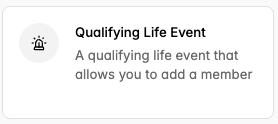
When might an employee qualify to be added to a plan mid-year?
- Loss of Other Coverage.
- Ex. An employee previously obtained health insurance through their spouse, but their spouse recently lost their job, so they’ve lost coverage and need to join the plan.
- Medicaid/Medicare Ineligibility.
- Ex. A member’s income increases beyond their state’s Medicaid limits, so they’ve lost coverage and need to join the plan.
- Legal Mandate.
- Ex. An employee was required by a judge to add their children to their health insurance plan as part of a custody arrangement, and needs to get on the plan to do so.
- Part-Time to Full-Time.
- Ex. An employee who previously did not qualify for coverage now works enough hours to qualify and needs to get on the plan.
How do I add the Employee using the ‘Qualifying Life Event‘ form?
- After clicking the ‘Qualifying Life Event‘ button, select the Reason for adding them to the plan and the Effective Date, then hit the black ‘+ Add Subscriber’ button and follow the same flow as the ‘New Employee’ button.
How do I select the Employee’s start date?
- Because employees joining the plan through Qualified Life Events were already employed and are not new hires, they do not need to wait the waiting period and can join the plan at any time.
- Please note that we do not prorate fees, so if a member starts mid-month, their employer will be charged for that entire month.
Adding new dependents to existing subscribers
- Go to the existing members page (where you can view all the information specific to that member) and click the tab ‘enrollment tools.’
- From there, click on the Add Dependent form, fill in the information, and the new member will be added to the subscriber’s profile, their member profile and card auto-populating.
-
What are the reasons a dependent can be added to a plan?
- Birth (Must request to join the plan within 30 days of brith.)
- Adoption (Must request to join the plan within 30 days of placement.)
- Marriage (Must request to join the plan within 30 days of the marriage.)
- Qualified Medical Child Support Order
- Loss of Coverage (Must request to join the plan within 30 days of the loss of coverage.)
- Subscriber Enrolled During Open Enrollment (and forgot to enroll a dependent.)
- Subscriber is a new hire (and forgot to enroll a dependent.)
Removing subscribers and dependents
- Go to the existing members page (where you can view all the information specific to that member) and click the tab ‘Enrollment Tools’ and the Action ‘Remove Member’
- Choose whether the member is leaving the plan because their employment was terminated, they were enrolled by mistake, or they’ve experienced a Qualified Life Event.

-
3 options for removing coverage -
If their employment was terminated, select ‘Terminated Employment’ and enter their last day of work. Then choose whether they are eligible for COBRA Continuation Coverage.
- If the employee was terminated for gross misconduct or negligence, uncheck the box — employees terminated those reasons are not eligible for COBRA coverage and therefore this member will not receive COBRA notification.
- If the employee was a mistaken enrollment, click the ‘Mistaken Enrollment’ button and attest that the member was enrolled by accident (can only be used in the first 30 days of the plan).
- If the employee had a qualifying life event, enter their last day and select the appropriate qualifying reason.
-
If their employment was terminated, select ‘Terminated Employment’ and enter their last day of work. Then choose whether they are eligible for COBRA Continuation Coverage.
- After you have terminated the member, they will receive coverage in line with your Termination Rule, as set during the onboarding stage of the Plan.
Notes
Please note that we do not prorate fees, so if a member starts mid-month, their employer will be charged for that entire month. This also applies to terminations: employees terminated partway through the month will still be charged for the full month worth of coverage.
Please also note these steps are only to be taken if the Employer’s HRIS system is not connected to the plan. If the Employer utilizes a direct HRIS connection then eligibility changes can be made directly in those systems.